Testing and bug reporting
- Relevant to all editions of PCLinuxOS.
This page should give you a brief introduction to testing and bug reporting for PCLinuxOS. If you are interested in contributing this way, please follow the instructions and join. Welcome!
Introduction
Testing and bug reporting is an important way to contribute to the stability and reliability of PCLinuxOS. Testing is performed by a dedicated band of testers who install packages from a separate testing section of the repository and run with them before they are released for wider usage in the main sections.

Activating testing is a simple process, but one that could damage your install requiring re-installation. If you feel that you are not able to troubleshoot or support an install yourself DO NOT DO IT!
What is testing
Testing is the process to ensure that PCLinuxOS keeps rolling. Packages which require testing are made available to testers to ensure that they does not adversely affect an install. These packages are placed into the special test section of the repository.
During the testing process, it is a possibility that an install is rendered broken, or have other problems. The testing process expects this and our testers work together to solve these issues.
How to enable testing
The test section of the repository is accessible via an option within the Synaptic package manager.
- Open Synaptic. Go to Settings > Repositories. Click and highlight the line corresponding to your mirror such that the URI box should show the address of your selected mirror.
- Now look in the Section(s) box. You should see :
x86_64 kde5 xfce4 mate
- Now click at the end of the above line and add test at the end so that your line should now read :
x86_64 kde5 xfce4 mate test
The result should look like this :
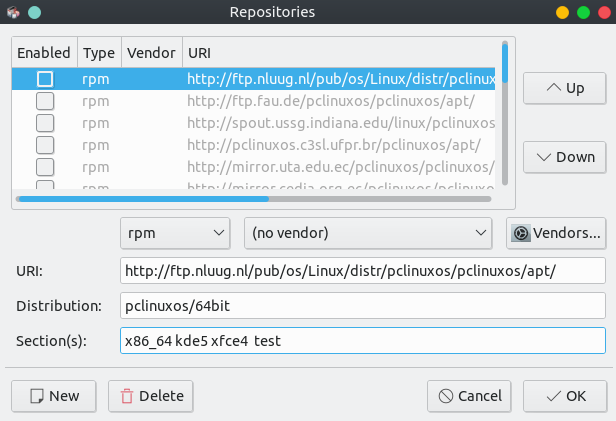

- Click OK and hit Reload.
Contraindications to testing
It is not recommended to activate testing :
- On a production machine or one that you have important information on.
- If you feel that you are not able to troubleshoot or support an install yourself.
Points to ponder
- Using real life hardware "bare-steel" is preferred. Virtual Box and its likes are not a good testing environment as the troubleshooting potential is very limited (as its not real hardware) but maybe OK for some application trouble shooting. For this reason you must state that you are using a virtual instance when posting a test report.
- By activating testing you accept that the install is temporary. On occasion you may be asked to reinstall.
- When you activate the test section you are accepting that PCLinuxOS has no liability to loss of information or other issues that may develop from being an active tester.
- When testing is activated, it is very important to ensure you do not install from external non-testing repository sources. This will taint your testing environment and give false information about your install should the external application replace existing libraries when it is installed.
- Remember that the more information you supply, the better.
- As in asking for support, if you don't tell us about what you have done and what results you got, we will not know.
- And just as in a request for support, "It don't work" is not information; it is a story.
- We do not want to move an app from test/testing to main only to have to reverse the process because of the differences in other packages.
- Logs can be a wealth of troubleshooting information.
- Although some application program logs can be scattered around the file system's directories, many of them are somewhere in your user's home directory.
- The most important system log files are kept in the /var/log directory.
- Kernel updates are independent of general system updates for PCLinuxOS. So if possible test with both the default kernel for the latest .iso and with the latest kernel available in the repository.
How to know what is new for testing
- Enable test section
- Click on Reload in Synaptic, click on the Status button on lower left and then New in repository on the left. This will show you the new packages that have been added to the repository since you last did a Reload. Those which are in testing will have "test" in the component column
- New versions of packages that you have installed will show in the Upgradable list and will also have "test" in the component column.